Theme development with the CLI
Pull a theme to your machine, edit Liquid templates in your own editor, and sync every save to an isolated draft.
Quick answers
14 questions · click to openCan I break the live site while I work?
No. Everything you do goes to a draft that’s completely isolated from the live site. Nothing changes for visitors until an admin clicks Publish, and discarding a draft reverts the lot.
Do I need to run cobber push?
Only if you edited files while the dev server wasn’t running. With cobber dev going, every save is already synced — push exists for the changes you made offline.
Two of us are working on the same theme. Will we overwrite each other?
You share one draft, and the Review & publish page shows who last changed each file. In the in-browser editor a save is refused if someone else saved that file since you opened it, with the choice to reload or save anyway. With the CLI, whoever pushes last wins — pull before you start, and check History if a change looks lost.
Who changed this template?
Open the theme in the dashboard and click History. Every publish is listed with who published it, their note, and each file it changed with a diff. The Review & publish page shows the same for changes still in the draft.
Can I get an old version of a template back?
Yes. On History, open the publish that had it and click Restore this version — it goes into the draft, not straight to the live site, so you still review it before publishing. Restore all files to draft puts back everything a publish changed.
Someone discarded the draft. Is our work gone?
The draft itself is, but History keeps a Draft discarded entry listing who discarded it and every change that was thrown away, each with a diff you can copy from or restore.
What do I need before I start?
Node.js 20 or later, an editor, and an admin account with the websites.develop permission on the organisation.
Where do colours and fonts live?
In the dashboard, not in the template files. Theme configuration — primary colour, fonts, custom CSS — is edited under Settings → Themes → Editor, and templates read it through CSS variables.
Can I work on more than one organisation?
Yes. Log in to as many as you like. The subdomain is saved into each theme folder’s manifest, so dev and push always act on the right org no matter which one is your default.
My form looks right and submits, but nothing arrives and the server answers 422. Why?
The form was written by hand. A page form must open with {{ page.form.open }}, or {{ widget_page.form.open }} inside a widget partial.
Why is my events page empty in the preview?
Because there are no published events yet — the preview lists exactly what the live site lists. Open your browser console on the preview page: under ‘Cobber theme preview — page-type data’ it says what the template was given, so you can tell an empty listing from a template problem.
Part of my preview says "Liquid error: internal". What does that mean?
A tag failed, so Cobber replaced that one tag with a placeholder and rendered the rest of the page. The message itself says nothing useful because it is also shown to the public on live pages — open the browser console on the preview and look for ‘A tag raised while rendering’, which names the real cause.
Can I preview an event, a branch or a collection item?
Yes. Click through to them in the preview, or go straight to the URL — /events/<event-slug>, /<directory-page>/<branch-slug>, /<collection-page>/<item-slug>. Links inside the preview keep you in the preview.
My preview URL stopped working.
Preview tokens are valid for 24 hours. Stop and restart cobber dev to get a fresh one.
Cobber themes control the look and feel of an organisation’s public website. Each theme contains content templates (Liquid HTML files) organised into categories, plus configuration (colours, fonts, custom CSS) managed in the dashboard.
The Cobber CLI lets you pull a theme to disk, edit templates in VS Code or any editor, and sync changes to a draft in real time. The draft is isolated from the live site — nothing goes live until an admin clicks Publish.
How it works
cobber pull— download a draft copy of the theme to your machine- Run
cobber devto start the syncer - Edit
.liquidfiles locally — the CLI syncs each save to the server - Preview your changes instantly in the browser
- When you’re happy, review the diff in the browser and click Publish
What you need first
| Requirement | Details |
|---|---|
| Node.js | Version 20 or later |
| Dashboard access | An admin account on the organisation with the websites.develop permission |
| Code editor | Any editor — VS Code, Sublime, Cursor, etc. Install a Liquid syntax extension for highlighting. |
Quick start
# 1. Install
npm install -g @cobberhq/cli

# 2. Authenticate
cobber login patrioticpretzels

# 3. Pull a theme
cobber pull

# 4. Start developing
cd patrioticpretzels-themes/standard
cobber dev

# 5. Edit .liquid files in your editor — changes sync live

# 6. When done, push any offline edits
cobber push

# 7. Review and publish in the dashboard
Check you’re on the latest CLI by comparing cobber --version against the version
on npm.
Authenticating
cobber login <subdomain>
Replace <subdomain> with the organisation’s subdomain (for example
cobber login patrioticpretzels). A browser window opens where you log in and
approve the device code. The CLI receives a long-lived access token, stored at
~/.cobber/config.json. You only need to do this once per organisation per
machine.
Working with several organisations. Authenticate with as many as you like — credentials are stored per-subdomain, and the org you logged into most recently becomes the default that
cobber pulluses. When you pull a theme the subdomain is saved in the manifest, socobber devandcobber pushalways use the right org for that folder regardless of which is default. Runcobber orgsto see which orgs you’re logged into and which is default (marked with*). Every command prints the org it’s acting on, so you can catch a wrong-org pull before it happens.
Pulling a theme
# Interactive — prompts you to pick a theme
cobber pull

# Pull a specific theme by name or slug
cobber pull standard

# Pull every theme at once
cobber pull --all
What you get on disk
| Directory | Purpose |
|---|---|
page_layouts/ | One template per page type (home, donation, membership, contact, volunteer, petition, signup, about, collection_index, collection_item). Each file controls the HTML for that page type. A suffixed name is an alternate layout — collection_item.candidates for one collection, home.movement as a second homepage design — and the unsuffixed file stays the default for everything that has not asked for one. |
site_layouts/ | The site-wide layout wrapper. Typically one file (layout.liquid) that includes the <head>, navigation, footer, and a {{ content }} placeholder where page content is injected. |
snippets/ | Reusable HTML fragments. Include them in other templates with {% snippet "name" %}. |
widget_partials/ | Templates for embeddable widgets and their success pages. |
.cobber/manifest.json | Internal metadata — draft ID, file checksums, API endpoint. Don’t edit this file. |
Each .liquid file maps 1:1 to a content template on the server. The filename
(minus the extension) is the template key.
Alternate layouts
A template key can carry a suffix. The part before the first dot is the page type; the rest names a variant of it.
page_layouts/home.liquid              # the default home page
page_layouts/home.movement.liquid     # an alternate, selectable per page
page_layouts/collection_item.liquid           # every collection falls back to this
page_layouts/collection_item.candidates.liquid # …unless it has its own
Both files are the same page type, so both are valid; the unsuffixed one stays the
default for anything that has not asked for a variant. Create the file, cobber
push, and it appears — for a page, in the Layout picker on the page editor;
for a collection, automatically, matched on the collection handle.
The suffix has to begin with a real page type.
collection_item.candidatesis a candidates-specific collection item layout;candidates.liquidon its own is a page type nothing renders.
Collections
A collection is a content type the organisation defines in the dashboard —
candidates, policies, media appearances. Each one has a listing page and a page per
item, rendered through collection_index and collection_item.
The fields are set up by the customer, so a template addresses them by key:
{%- comment -%} collection_index.candidates.liquid {%- endcomment -%}
{% for item in page.items %}
<a href="{{ item.url }}">{{ item.title }} — {{ item.electorate }}, {{ item.state }}</a>
{% endfor %}
{% assign pg = page.items.pagination %}
page.items is paginated in exactly the same shape as page.posts, so pager
markup ports across unchanged. Any collection is also addressable from any
template by its handle, which is what a homepage rail uses:
{% for c in collections.candidates %}{{ c.title }}{% endfor %}
{% collection_items 'candidates', where: 'featured', limit: 4 %}
{% for item in collection_items %}{{ item.title }}{% endfor %}
{% endcollection_items %}
On an item template the current item is item:
{{ item.title }} {{ item.url }} {{ item.headshot }} {{ item.fields.summary }}
Two field types behave differently from the rest, and they are the reason collections are worth using:
| Type | What you get in Liquid |
|---|---|
reference |
The record itself, not an id — so you can walk into it.
{{ item.branch.name }}, or
{% for e in item.branch.upcoming_events limit: 2 %}. Points at a branch,
event, person, or an item in another collection. A reference whose target was
deleted renders blank rather than erroring. |
image / file |
A URL. The customer uploads the file in the dashboard; the template gets
something it can put straight in src or href. An
externally hosted URL passes through unchanged, so both work. |
Forms that report back to the CRM
{% widget %} embeds another page’s form. On a collection item, adding
attribute_to: tags the submission with that item:
{% widget 'contact' with 'contact_partial', attribute_to: item %}
{% widget 'donate' with 'donation_partial', attribute_to: item %}
Every enquiry and every donation through that page is then attributed to the item in the CRM, so “everyone who contacted this candidate” is a filter on the People screen rather than a mailbox someone forwards. Nothing else about the widget changes — the hidden field is added for you at render time, so this works with a widget partial you have already customised.
Contact your MP
{% contact_your_mp %} renders the three-step composer (find MP → choose a
letter → edit and send) on a Contact your MP page. The default layout puts
the title on the left and the composer on the right — change that in this page
type’s layout if you want a different arrangement. Letters and the optional
state allowlist come from that page’s settings, not from the tag. Supporters
always get a Write your own email option as well as any campaign letters.
Every letter is framed with Dear {{mp_name}} and a Yours sincerely sign-off
if the stored body omitted them. Stages swap inside the composer with no page
reload.
Create the page from Pages → Add new page; it is not added to new sites for you. See Contact your MP.
The development loop
cd <subdomain>-themes/<theme-slug>
cobber dev
This starts a file watcher and opens a preview URL in your browser. Every time you
save a .liquid file the CLI detects the change, pushes the updated content to
the draft, and the preview tab reloads to show it.
Keep the terminal and browser side by side — edits appear in under a second.
What the preview shows
The preview renders your draft templates against your organisation’s real content. An events page in preview lists the same events the live site lists, a collection index lists the same items, and a branch page shows the same division details. If a listing looks empty in preview, that is your content — there is nothing published for it yet.
Navigate the preview the way a visitor navigates the site. Every internal link is rewritten to stay inside the preview, so you can reach the page types that aren’t pages in their own right:
| To preview | Go to |
|---|---|
The events listing (events_index) |
/events |
A single event (event) |
/events/<event-slug> |
A collection listing (collection_index) |
/<collection-page-slug> |
One item in a collection (collection_item) |
/<collection-page-slug>/<item-slug> |
A branch page (branch) |
/<directory-page-slug>/<branch-slug> |
Preview also includes unpublished pages, events and items, so you can build a layout before its content goes live.
Checking what data a template was given
Open your browser’s developer console on any preview page. Under Cobber theme
preview — page-type data, the preview lists the data it handed the template and
what was in it — for example events: 12 upcoming, 3 past. Where something is
empty it says so explicitly, so an empty page is never ambiguous between “no
content yet” and “this data isn’t available here”. The same list is in the page
source as an HTML comment.
When part of the page says “Liquid error: internal”
That is what a tag prints in its own place when it fails — it replaces only that tag, so the rest of the page still renders. The message deliberately says nothing about what went wrong, because it is shown to the public on a live page too.
In a preview, the console tells you the real cause: look for A tag raised while rendering in the same console group, which names the error and the line. If the cause is in your template — a tag given the wrong arguments, say — fix it and save. If it looks like a Cobber problem rather than a template one, send us that console line; it is exactly what we need.
Pushing offline edits
If you used cobber dev, your changes are already on the server: every save was
synced live, and you don’t need to push. cobber push is only for files you
edited while the dev server wasn’t running.
cobber
push
This compares local files against the manifest checksums and uploads any that changed. It also detects new and deleted files. After pushing, the CLI prints a link to the Review & publish page, which shows every changed template with its diff and who changed it, so an admin can see exactly what is about to go live.
Working alongside other people
A theme has one draft, shared by everyone editing it — whether from the CLI or the in-browser editor. Think of it as a shared staging site: your colleague’s saves and yours land in the same place, and the Review & publish page lists them side by side, each with the person who made it.
Two people changing the same file is where things could go wrong. In the in-browser editor, Cobber checks: if someone else has saved the file since you opened it, your save is refused with “Tom Reilly saved this file 4 minutes ago” and the choice of Reload to see their version or Save anyway.
With the CLI, whoever pushes last wins — cobber dev syncs whatever is on your
disk. So cobber pull before you start a session, and if a change looks lost,
open History: every save is kept, with the person who made it, and any
version can be restored. There is no merge — if you both need to work on one
file at the same time, keep the theme in git and use that.
Publishing
Publishing is the only way a change reaches visitors, and it always goes through one page:
-
Open Review & publish
Go to Settings → Themes in the organisation dashboard, click the theme, then Review & publish. The badge on the button is the number of unpublished changes. You can also get there from the Review & publish button in the in-browser editor, or the link the CLI prints after a push.
-
Check each change
Every changed file is listed with who changed it, when, and whether it came from the CLI or the editor. Click a file to open its diff underneath. The summary at the top says how many files changed since the last publish and who contributed — if Tom's changes are in there, you will see Tom's name before you publish them.
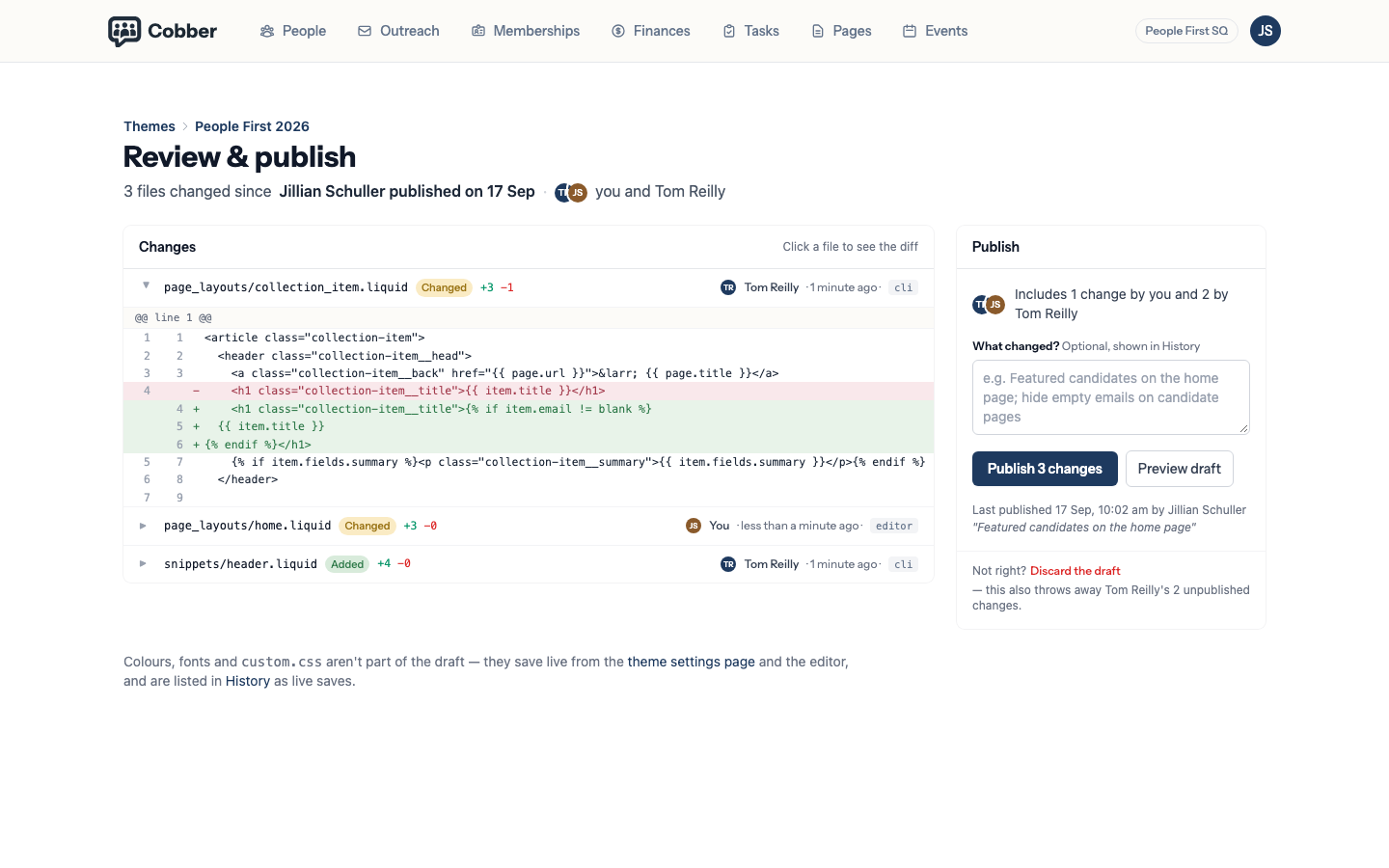
Review & publish: every change attributed, with its diff, and the publish note on the right. -
Say what changed, and publish
The What changed? note is optional, but it becomes the headline of this publish in History — a sentence like "Featured candidates on the home page" is what your colleagues will see when they look back. Click Publish N changes. The confirmation names everyone whose changes are included. The draft is discarded afterwards — run
cobber
pull
again to start a new cycle.
Not right? Discard the draft on the same page throws away every unpublished change — and says whose. The discarded changes stay listed in History.
Safe by design. The draft is completely isolated. You can experiment freely — nothing affects the live site until Publish is clicked, and discarding a draft reverts all changes.
History and restoring
Every theme has a History page (Settings → Themes, click the theme, then History). It is the theme’s audit trail, newest first:
- Each publish — who published it, the note they wrote, and every file it changed with the number of lines added and removed. Open a publish to see its files; View diff shows exactly what changed.
- Live saves — colours, fonts and
custom.cssare not part of the draft, so saving them changes the site straight away. They are listed here in amber so nothing that changed the site is missing from the record. - Discarded drafts — who discarded, and every change that was thrown away.
- Theme created — the starting point.
Restore this version on any file puts that version into the draft. It does not touch the live site: you still review and publish, so a panicked rollback still shows you exactly what you are about to put back. Restore all files to draft on a publish does the same for everything that publish changed.
In the in-browser editor, the History panel on the right shows the same versions for the file you have open, with Compare with draft and Restore to draft on each.
Gotchas
| Thing | Detail |
|---|---|
| Colours and fonts live in the dashboard | Theme configuration (primary colour, fonts, custom CSS) is not stored in template files. Edit it under Settings → Themes → Editor. Templates access it via CSS variables. These save live — they are not part of the draft — and each save is listed in History. |
| Don’t edit manifest.json | .cobber/manifest.json tracks the draft ID and file checksums. Editing it can cause sync issues. If things get out of sync, delete the theme directory and cobber pull again. |
| Multiple themes | An organisation can have several themes. Individual pages can be assigned to different themes, or the whole site can use one active theme. cobber pull --all pulls every theme at once. |
The full list of variables, tags and filters available inside a template is in the Liquid reference.