Automations
Journeys that run themselves — welcome a supporter, thank a donor, tell an organiser to ring someone.
Quick answers
8 questions · click to openWhat can an automation actually do?
Send an email, send an SMS, wait, local group on a condition, add or remove a tag, create a task, or exit. Strung together, that covers almost every follow-up an organisation does by hand.
What starts one?
A trigger — something the supporter does, like signing a petition, being added to a tag, or signing up. You choose the trigger first, then build the steps.
Can I edit the header and footer of an automation email?
Yes. Click Email Content or Edit Design and you get the full email — header, body and footer — in the same editor as a campaign. New steps start with the same marketing starter content as outreach campaigns.
Can I copy a campaign into an automation email?
Yes, if you already have outreach campaigns. Copy from campaign, pick one, then Apply design. That brings in the body, layout template and branding. Edit anything you need, then save the step to keep it.
Can an automation create a task instead of sending an email?
Yes, and it's the most underused step. Create Task puts a job in front of an organiser — ring this volunteer within 48 hours — which converts far better than another email.
How do I know if it's working?
Each automation shows how many people are enrolled, how many completed and how many exited, with open rates per step. If people enrol and never complete, the step where they stop is the one to fix.
Can I stop one without losing it?
Yes. An automation can be a draft rather than active, so you can pause it and keep the design.
How many should we have?
Three is plenty to start. Petition to donation ask, donation to recurring ask, volunteer signup to a task for a human.
An automation is a trigger and a series of steps. Somebody does something, and Cobber does the follow-up you would otherwise mean to do and forget.
The pieces
| Piece | What it does |
|---|---|
| Send Email | Sends an email to the person. You write the full design — header, body and footer — in the same editor as a campaign. |
| Send SMS | Sends a text. Costs money per message, so the step shows the estimated cost. |
| Delay | Waits. The most important step in most automations — the ask lands better three days later. |
| Condition | Local groups on whether the person has a tag, doesn't have a tag, is in a list, or has viewed a page. |
| Add Tag / Remove Tag | Tags the person for segmentation later. |
| Create Task | Puts a job in front of a human. |
-
Choose a trigger
Choose a Trigger is the first decision: what starts this. There are eight — a donation, a membership, a contact submission, a signup, a volunteer, a petition signature, a tag being added, or an event RSVP.
Narrow it while you are there. Scope to a page ties the trigger to one specific page rather than every page you run, so a welcome sequence for one petition does not fire for another.
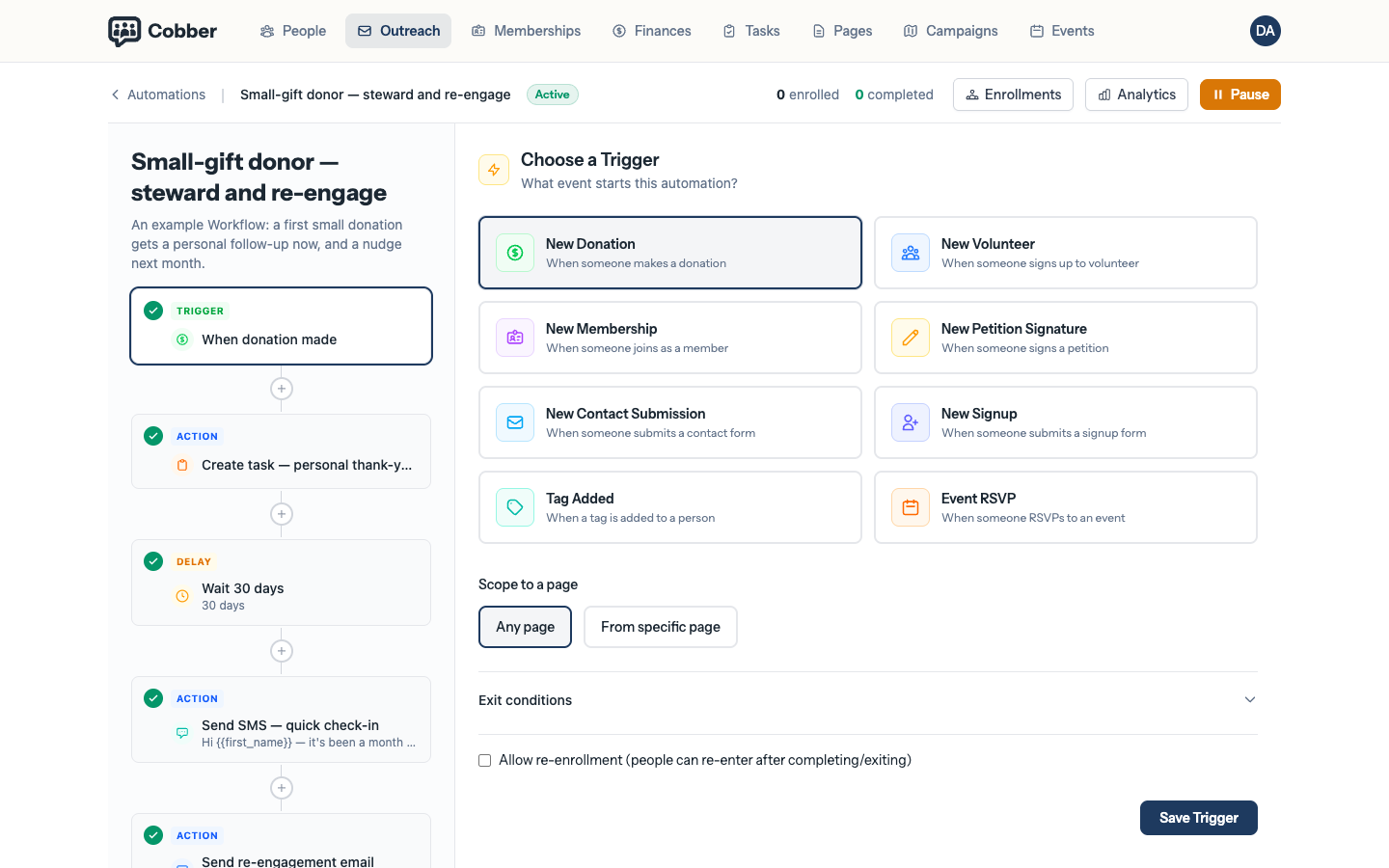
Choosing the trigger, and scoping it to a single page. -
Add the steps
New Step then Choose an Action. Build the sequence in the order it should happen, and use Delay generously — an automation that fires three emails in ten minutes reads as a malfunction.
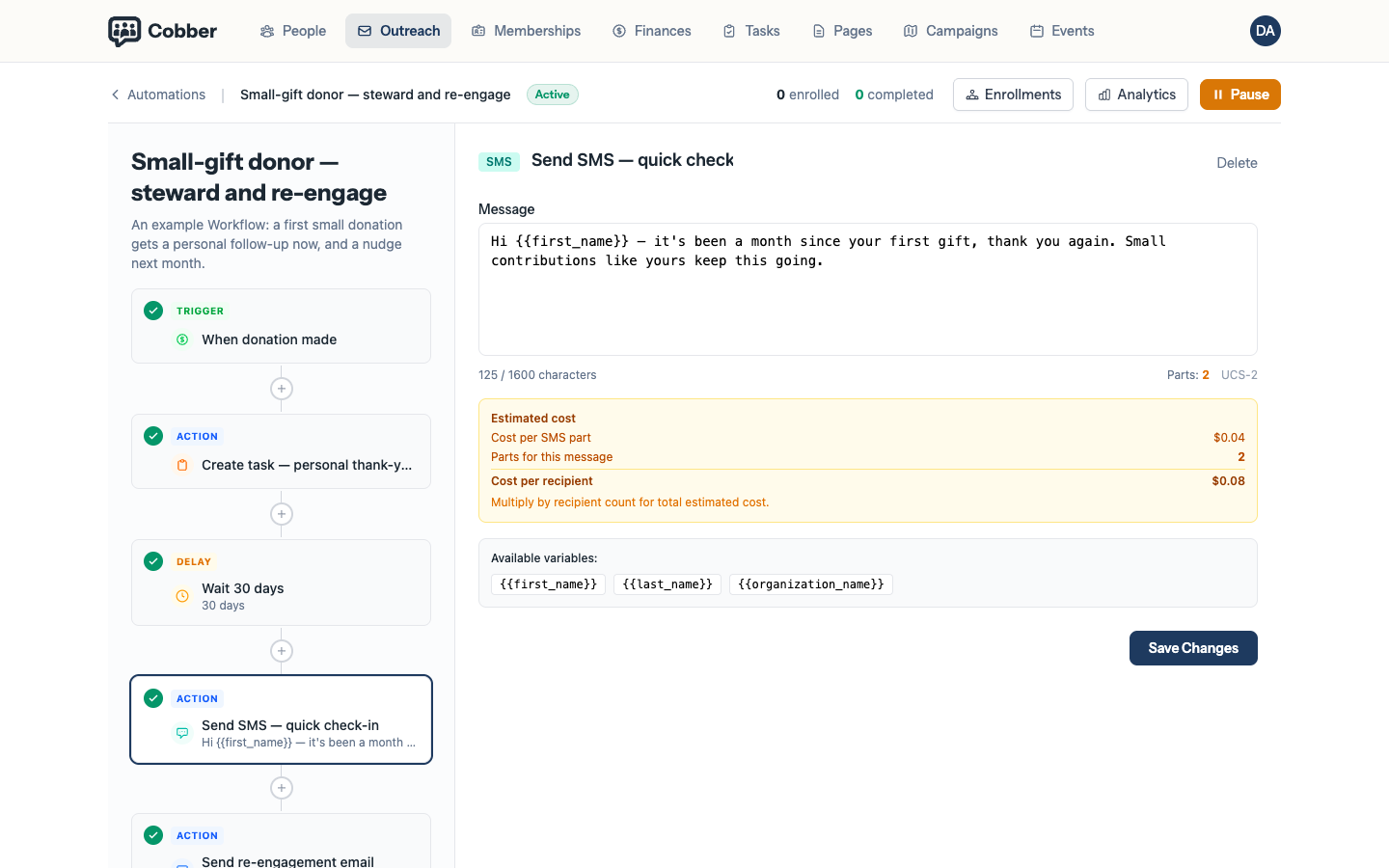
An action step being configured — the SMS body, its cost and the merge fields available. -
Set exit conditions
Exit conditions take someone out of the journey when it stops being relevant — most usefully, when they have already done the thing you are asking for. Nobody should keep receiving a donation ask after they have donated.
-
Activate it
Automations start as drafts. Nothing happens until you make one active, and you can put it back to draft later without losing the design.
Writing a Send Email step
The step config has Layout template, Subject, and Email Content. If the organisation already has outreach campaigns, Copy from campaign sits under the layout picker.
Layout template is the same header and footer layouts as outreach campaigns. Branding is baked into the design when you apply a template or campaign.
Copy from campaign is the shortcut if you already have a design you like. Choose a campaign, then Apply design. That brings in the body, layout template and branding. You can still edit everything afterwards — save the step to keep it.
Email Content is a scaled preview of the body. Click it, or Edit Design,
to open the editor. Header, body and footer are all editable. New steps start
with the same marketing starter content as outreach campaigns. Use
Merge tags in the toolbar for {{first_name}}, {{organization_name}},
{{unsubscribe_url}} and the rest. Keep the unsubscribe link in the footer.
Watch what happens next
Each automation reports Total Enrolled, how many are Currently Active, and how many Completed or Exited, with an open rate against each email step.
Read it as a funnel. If a hundred people enrol and eleven complete, the step where they stop is the one to rewrite — usually the one that asks for money too soon.
Build one, watch it for a fortnight, then build the next. Three automations you understand beat ten you have lost track of, and every automation is a message going out with nobody reading it first.