Sending an SMS campaign
Writing it, checking who it reaches, and knowing the cost before you press send.
Quick answers
6 questions · click to openHow is SMS different from email?
It costs money per message, it can’t be un-sent, and it can’t be scheduled — an SMS campaign is draft, then sending, then sent. Get it right before you commit.
Who actually receives it?
People with a mobile number who haven’t opted out of SMS, within your division scope. Everyone else is skipped.
Can I send myself a test first?
There’s no send-test for SMS the way there is for email. Click the **Estimated recipients** number to preview who would receive it, and read the message back to yourself before you commit.
How do I know what it will cost?
The composer shows the message parts and the cost as you type, so you can see a message tip into a second part before you send rather than after.
Why did my message become two parts?
Either it went past 160 characters, or it contains an emoji or special character — which switches the whole message to a wider encoding where a single part is only 70 characters.
Can a local group send its own SMS?
Yes. Campaigns can target a division, so a local group reaches its own people.
SMS gets read. That’s the appeal and the risk: it lands in a place people don’t expect to hear from an organisation, it costs real money, and there’s no recall.
Before you write anything
- Know why it’s a text and not an email. Urgency and short instructions suit SMS — an event tomorrow, a polling booth location, a deadline tonight. Newsletters don’t.
- Check who has a mobile number. People without one are skipped, so your reachable audience is smaller than your list.
- Have a look at the cost. See costs, opt-outs and compliance.
-
Create the campaign
Under SMS Campaigns, start a new campaign and fill in Campaign Details.
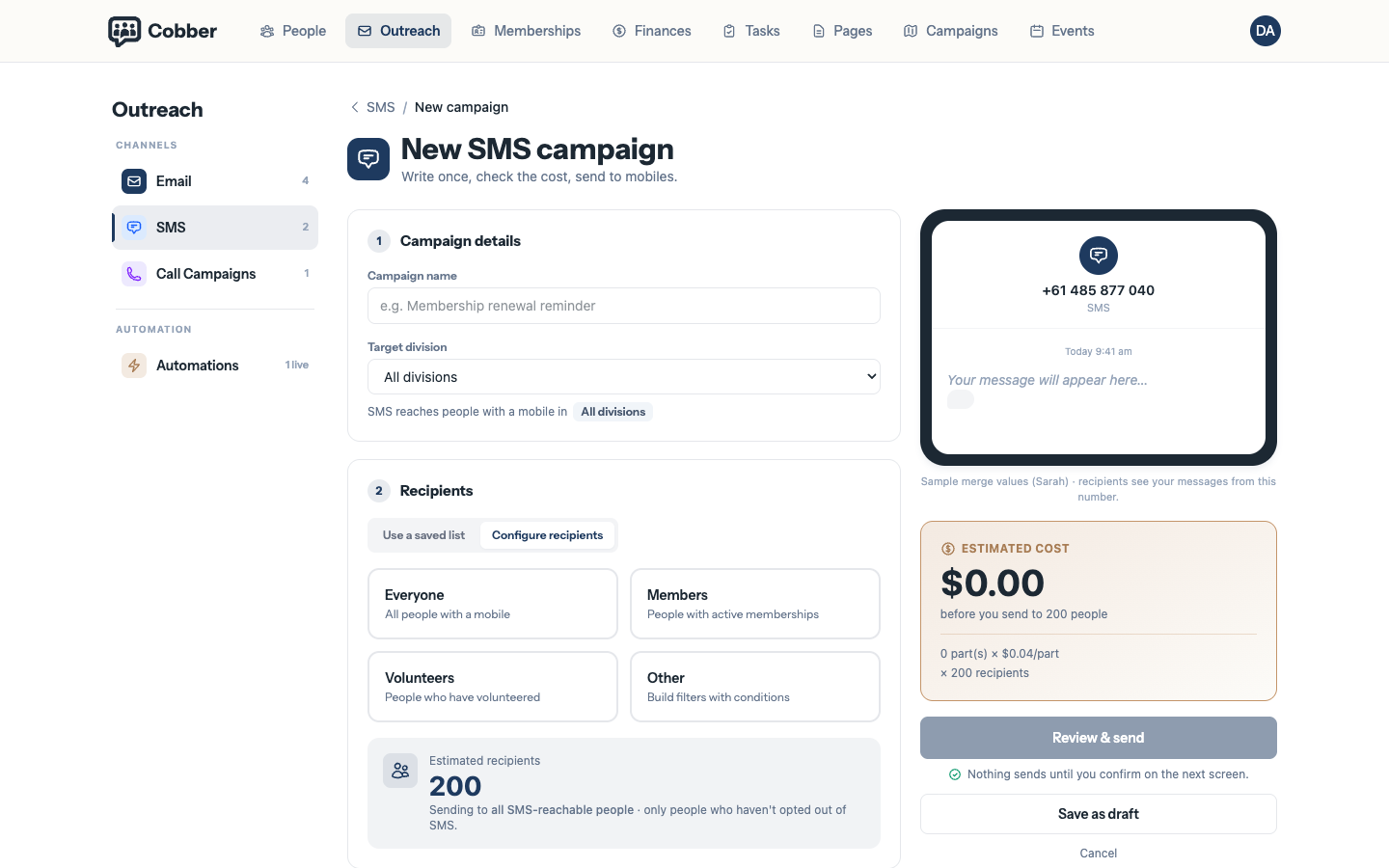
A new SMS campaign, with the message and the audience. -
Choose the audience
Under Recipients, choose everyone, a saved list, or filters — including by division or electorate. Cobber shows the Estimated recipients as you narrow it down. Click that number to open a preview of the first 100 matching people (you don’t need to save first).
-
Write the message
The composer shows a live phone preview alongside the character count, Message Parts and the running cost. Merge fields work here too, so you can use a first name — just remember every merge field makes the message longer for some people than others.
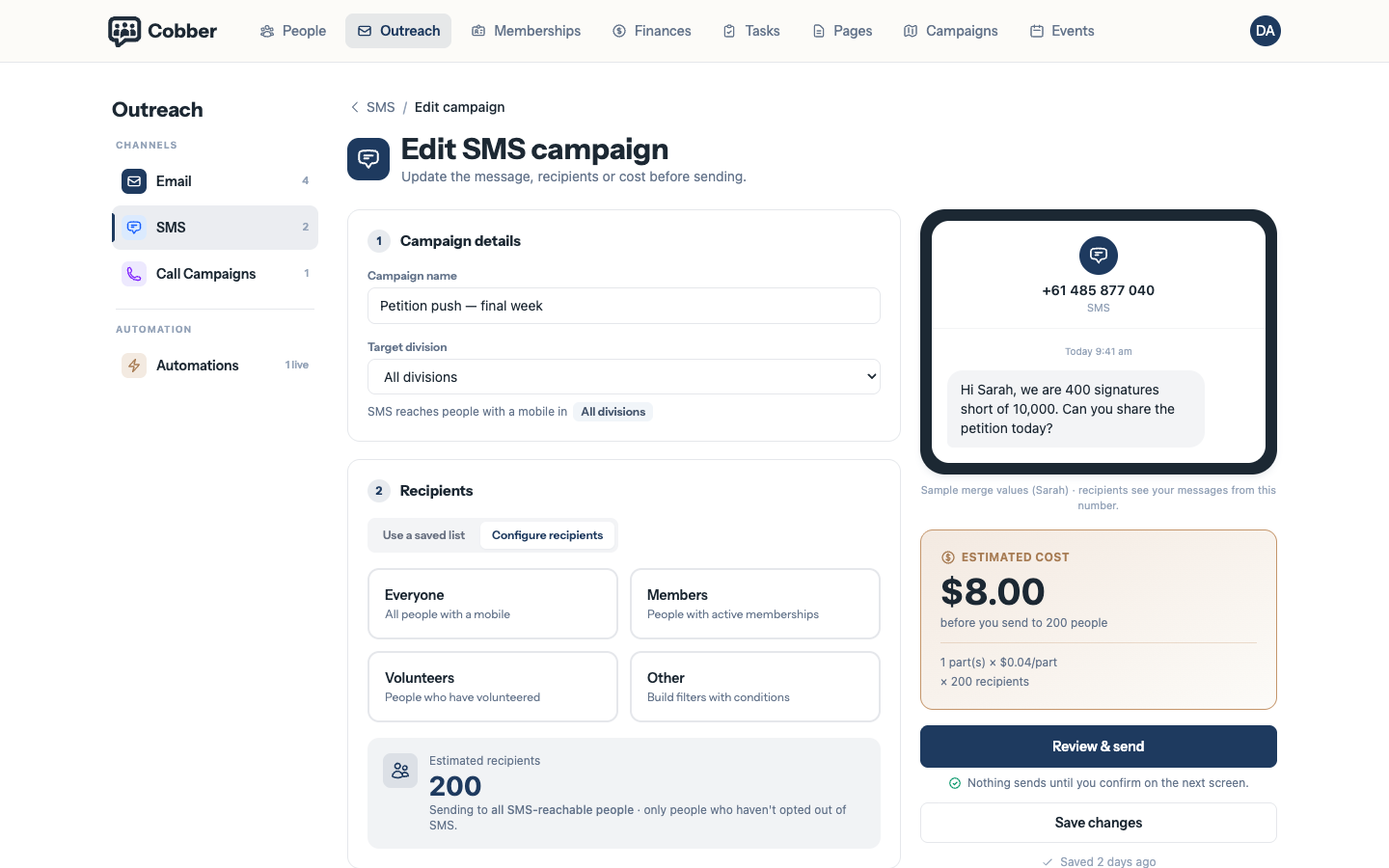
The composer, with the phone preview and the running cost. -
Check the recipient preview
Click the Estimated recipients number again any time you change the audience. The preview lists who would receive the SMS — up to the first 100 — and is the closest thing to a test send, so use it before you commit.
-
Review and send
The confirmation screen shows who you’re Sending to and the cost. Send now starts it — there’s no scheduling and no undo.
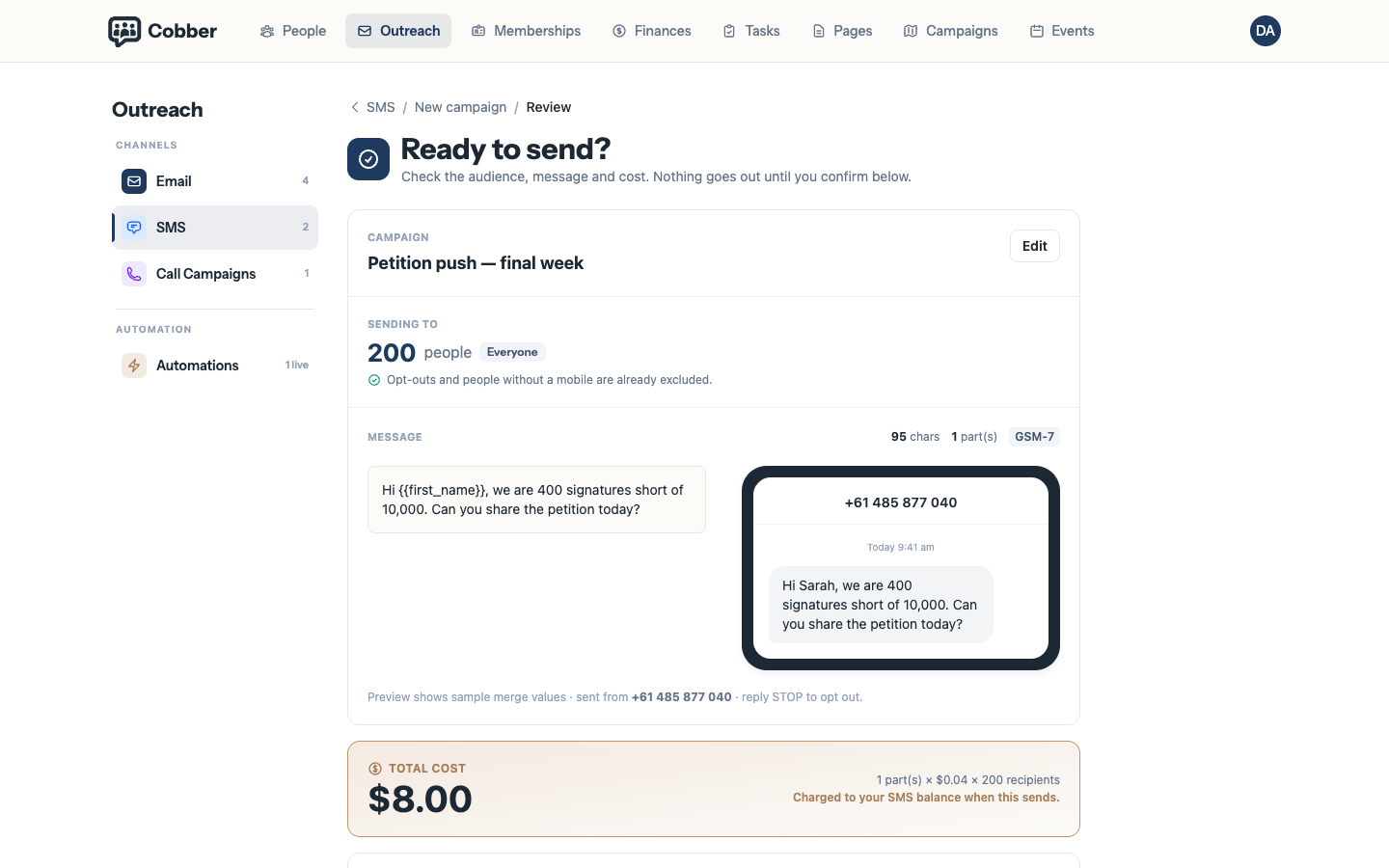
Keep it short on purpose
Every part costs money, and a message that runs to three parts usually says three things. Pick one. If a supporter needs detail, send them a link to a page that has it — that’s cheaper and easier to read on a phone anyway.
| Symptom | Cause and fix |
|---|---|
| Far fewer recipients than people on the list | Most likely missing or invalid mobile numbers. The Review & send screen warns how many will be skipped for invalid numbers; fix the records under Data Quality. |
| The cost doubled when you added an emoji | Expected. One emoji switches the whole message to the wider encoding, cutting a single part from 160 characters to 70. |
| Nothing sent and the org is in demo mode | Demo mode blocks all outbound SMS deliberately, so a demo organisation can’t text real people. |
| A supporter asked to stop and still got the next one | The SMS opt-out on their record has to be set by hand — Cobber doesn’t process inbound replies. Set it as soon as someone asks. |