Your first week
The order to do things in — get your people in, get your team in, verify your email, then send.
Quick answers
5 questions · click to openWhat should I do first?
Import your people. Almost everything else in Cobber — lists, campaigns, memberships, donations — hangs off a person record, so the sooner your people are in, the sooner the rest is worth setting up.
Can I send an email straight away?
Only once your sending domain is verified. Until then a campaign shows Sender not verified and nothing goes out, so it’s worth starting the domain verification early — it depends on a DNS change, which can take a while.
Do I have to import everything at once?
No. Import the list you have now and add more later. When you import again Cobber matches each row to an existing person by email address, and falls back to mobile number if there’s no email match, so a second import updates people rather than duplicating them.
Who can see what?
It depends on the division a person’s role sits at. Someone with a local role only sees people in that local group’s electorates; a state or national role sees wider. Set roles before you invite people, not after.
How long does the first week actually take?
A few hours of real work, spread across a week while you wait on DNS. The import and the team setup are the two jobs worth doing carefully.
Cobber’s a big product, and it’s tempting to poke at all of it at once. Here’s the order we’d work through it in — and why, because the order isn’t arbitrary.
Day one — get your people in
Almost everything else hangs off a person record — lists, campaigns, memberships, donations and events all point at people. Get your supporters in and the rest of the setup starts making sense.
-
Open the import wizard
Go to Data Imports and start a new import. The first screen asks What are you importing? — choose People, then Choose a file.
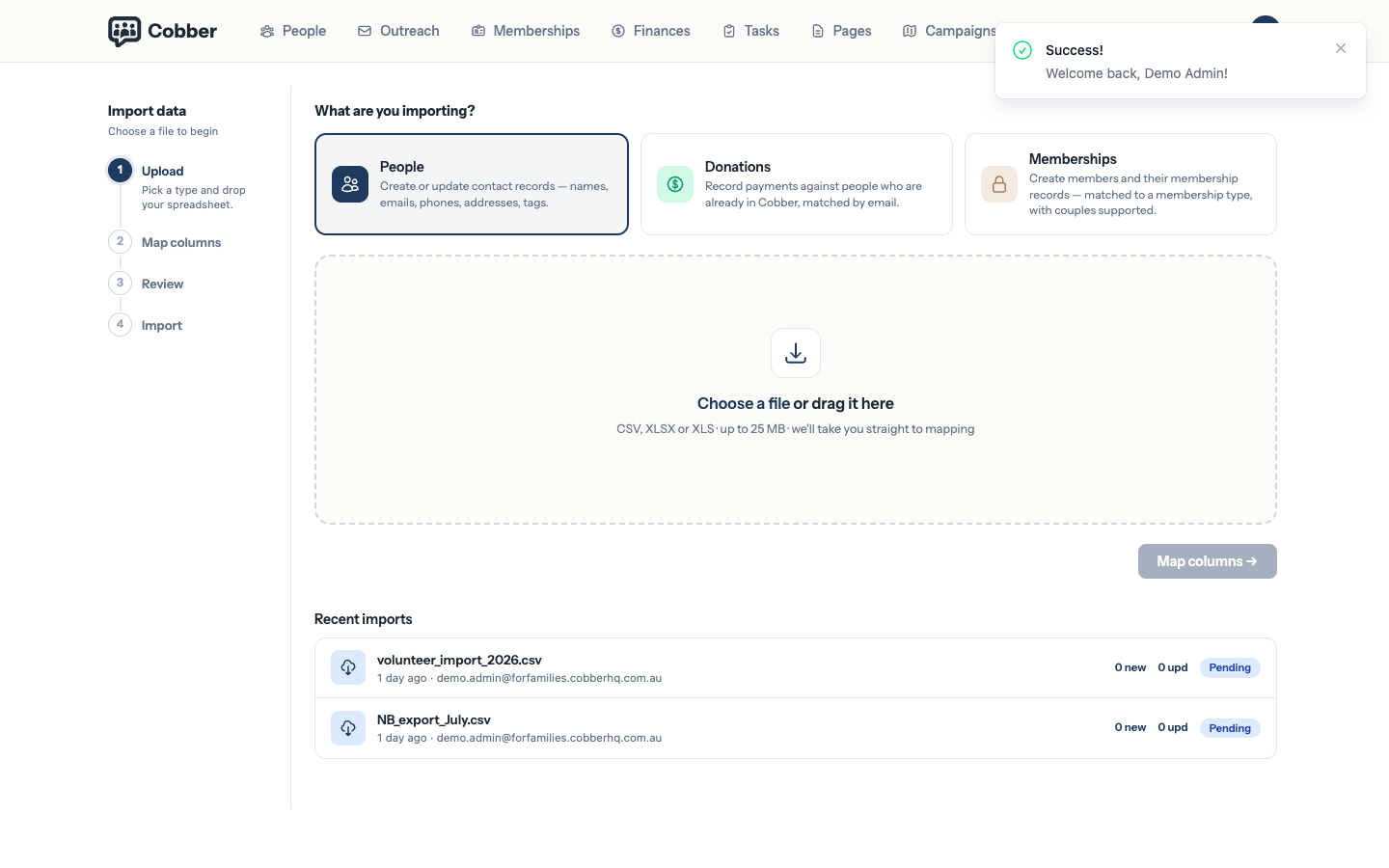
The import wizard, with the four import types. -
Map your columns
Cobber reads the header row of your spreadsheet and offers a match for each column. Anything it can’t place is set to Don’t import, and you can point a column at a Custom field if you hold something Cobber has no home for.
-
Check the review screen before you commit
The review step shows what will be created and what will be updated. It’s the last point at which a bad mapping is free to fix.
If your data is coming out of NationBuilder, you don’t need to pick anything different. Cobber recognises a NationBuilder export from its column headers and switches to a locked mapping automatically, bringing people, memberships and donations across in one pass. See moving from NationBuilder.
Day two — set up your team and their divisions
Cobber scopes what an admin can see to a political division. Get this right before you invite anyone, because a role assigned at the wrong level shows someone either too little or too much.
-
Check your division structure
Under Users & Permissions, open Political Divisions. You should see your national division, the states below it, and local groups below those.
-
Create the roles you need
Roles holds the named roles and the permissions attached to each. Build the roles first so there’s something to assign when people arrive.
-
Invite your team
New User creates an admin and sends them an invitation. Then use Assign a role to give them a role at the right division. Someone with a local role sees only people in that local group’s electorates.
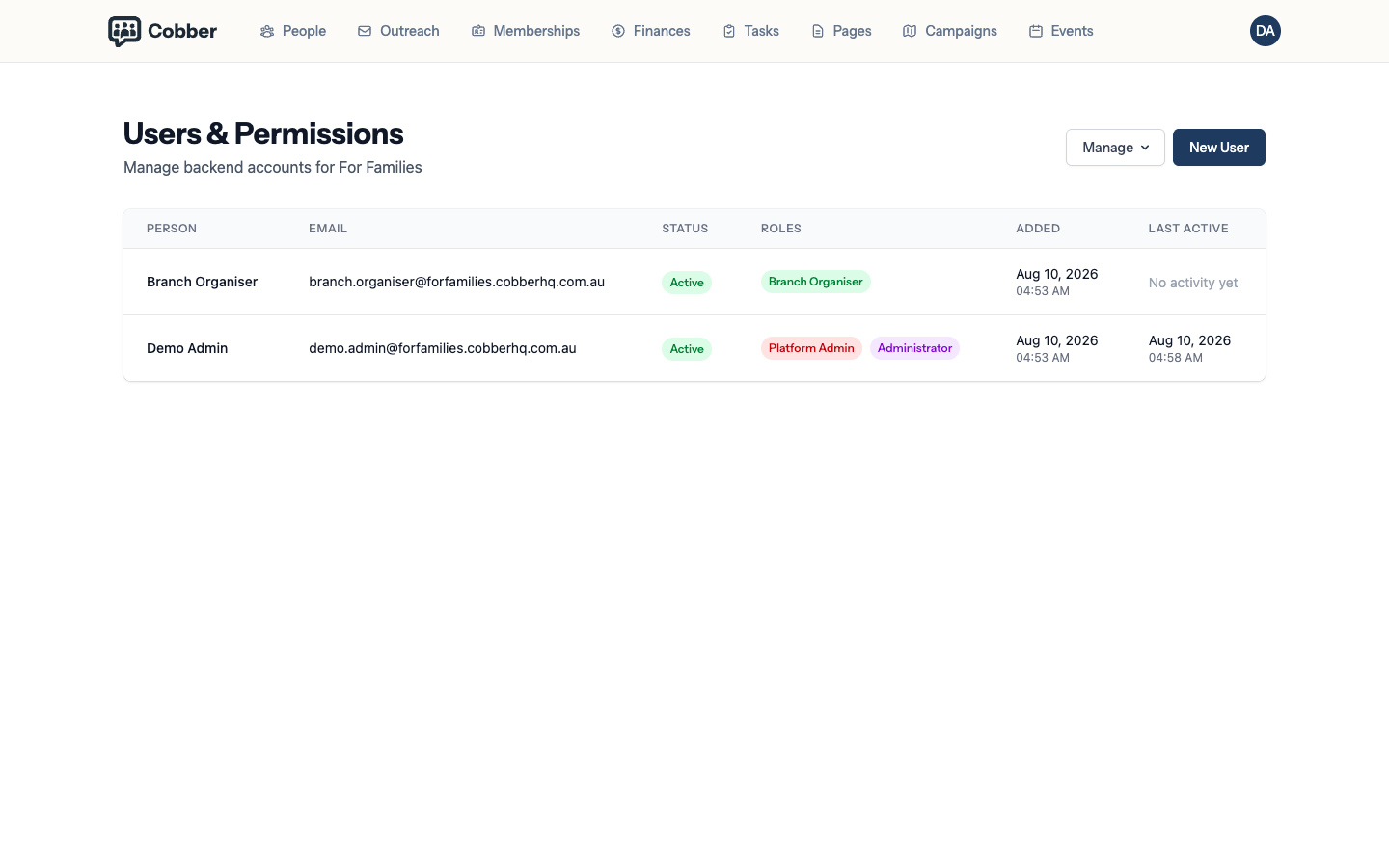
Assigning a role scoped to a political division.
Day three — verify your sending domain
Start this early. It needs a DNS change, and DNS is the one part of the setup that runs on someone else’s clock.
Open Email Configuration and work through Email Streams & Domains. Until the domain your from address uses is verified, campaigns show Sender not verified and nothing sends.
Do this before you write anything. A finished campaign that can’t send is a bad week. Verifying the domain first means the only thing left to get right is the writing.
Later in the week — send something small
Don’t make your first send an all-members newsletter. Build a small audience — one local group, or a saved list of a few dozen people — and send to that first. Use Send Test Email to check the formatting in your own inbox before the campaign goes out; a test doesn’t count against the campaign.
If the numbers look wrong when it lands, why an email didn’t send covers the four usual causes.
What can wait
- Themes and page templates. Your public site can keep running as it is while you get the CRM side working.
- Automations. Worth setting up once you know which follow-ups you actually repeat.
- Custom fields. Add them when you hit something you genuinely can’t store, not in advance.