Moving from NationBuilder
What comes across from a NationBuilder export, what doesn’t, and the order to do it in.
Quick answers
6 questions · click to openDo I have to map NationBuilder's columns myself?
No. Cobber recognises a NationBuilder export from its column headers and switches to a locked mapping automatically. You review the mapping on screen but you can’t change it — the import engine is built specifically for NationBuilder’s format.
Does it bring donations and memberships too, or just people?
People. The importer creates and updates person records — it doesn’t create individual donation or membership records. Donation history comes across as a summary on the person (their total, how many gifts, and first and last donation dates), and donors are tagged so you can find them.
What happens to our tags?
NationBuilder’s tag_list column comes across as tags on the person record.
Are people who opted out still opted out?
Yes. NationBuilder’s unsubscribed_at and email_opt_in columns both map to the email opt-out on the person, so someone who unsubscribed there stays unsubscribed here.
What about electorates?
federal_district becomes the federal electorate, state_lower_district becomes the state electorate, and city_district becomes the LGA — so local group assignment works from day one.
Why is a column showing as “Won’t import”?
It has no equivalent in Cobber. The mapping is fixed, so anything outside it is skipped rather than guessed at. If you need a column kept, tell us before you import and we’ll look at it.
Cobber has a purpose-built importer for NationBuilder exports. It recognises the file from its headers and runs a different engine to the ordinary spreadsheet import — one built around NationBuilder’s own column names, so there’s nothing to map by hand.
It builds your people. Donation history comes across as a summary on each person rather than as individual transactions, which is worth understanding before you go looking for them.
What Cobber does automatically
You never choose “NationBuilder” from a menu. When you upload a file, Cobber
looks at the column headers, and if enough of NationBuilder’s distinctive ones
are present — nationbuilder_id, signup_type, tag_list, is_supporter,
primary_address1 and the like — it switches into NationBuilder mode on its own.
The threshold is deliberately loose, because NationBuilder exports vary depending on what you tick when you export. An ordinary people or donations spreadsheet hits none of those headers, so there’s no risk of a normal import being treated as a NationBuilder one by mistake.
-
Export from NationBuilder
Take a full people export. Include the donation summary columns if NationBuilder offers them — Cobber reads those onto each person, so a fuller export means a richer record.
-
Upload it to Cobber
Go to Data Imports and upload the file. You don’t need to choose an import type; the screen changes to Import NationBuilder export once the file is recognised.
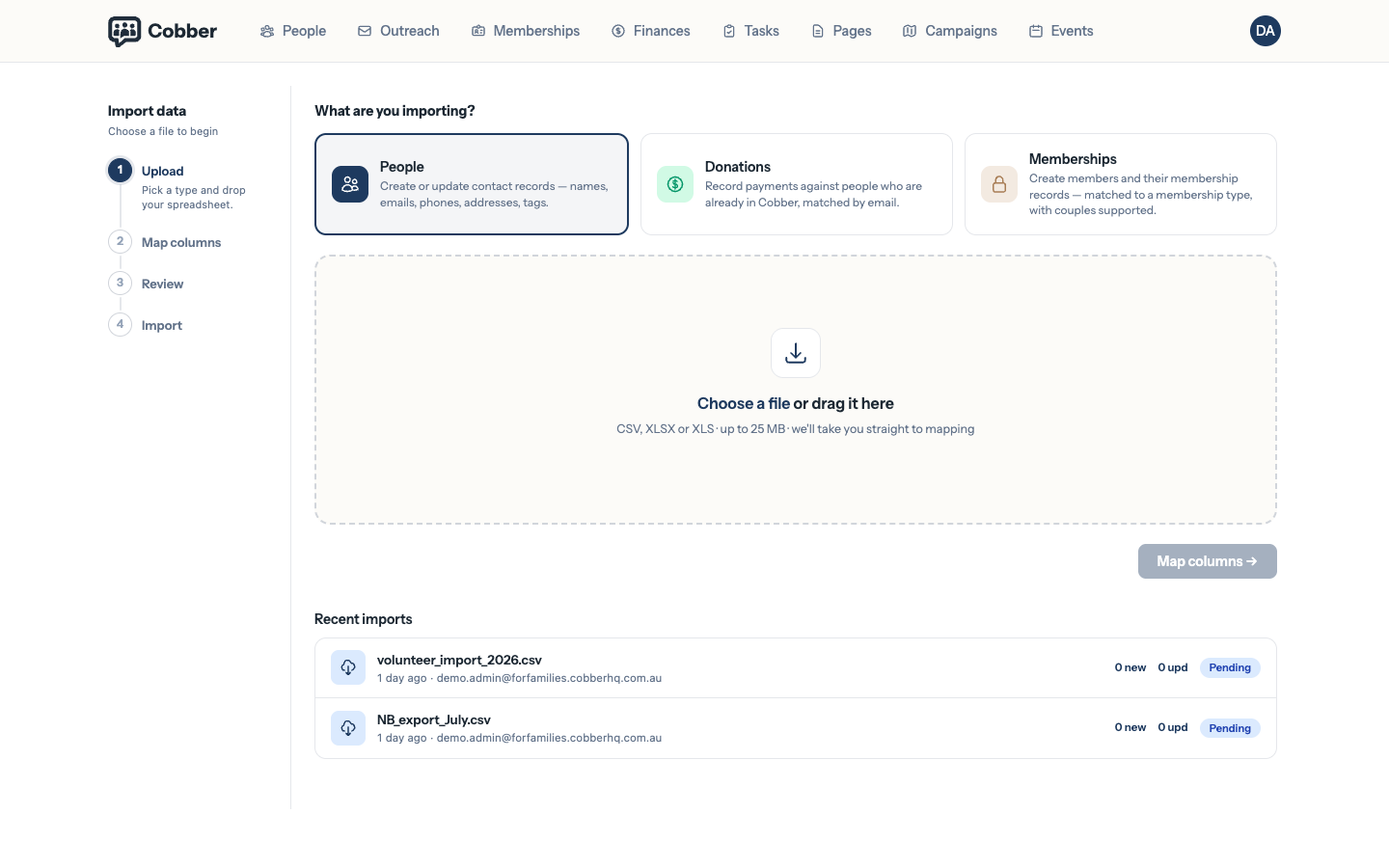
The wizard, switched into NationBuilder mode after reading the headers. -
Review the locked mapping
You’ll see every column in your file and where it’s going. This screen is read-only on purpose — the NationBuilder engine is hardcoded rather than driven by your choices, which is what makes it reliable. Columns with no equivalent in Cobber show as Won’t import.
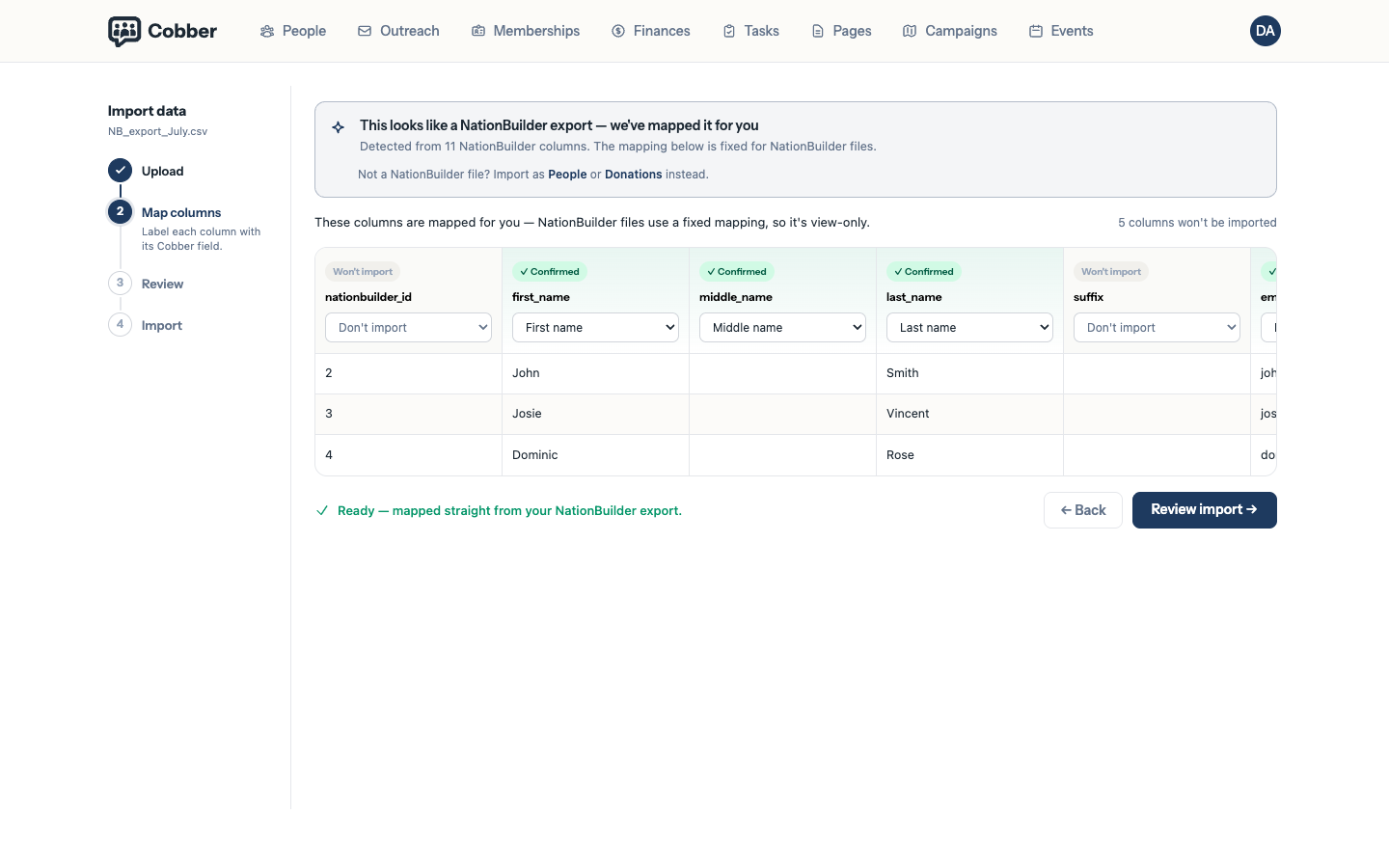
The locked column mapping, with unmapped columns marked. -
Check the review screen, then commit
The review step shows what will be created before anything is written. Read the counts — if the number of people is wildly different from what you expect, stop and check you exported everything.
What comes across
| In NationBuilder | Where it lands |
|---|---|
| first_name, middle_name, last_name | Name fields on the person |
| email, email1–email4 | Email address, with the extras kept as secondary emails |
| mobile_number, phone_number, work_phone_number | Mobile, home and work phone |
| primary_address1, primary_city, primary_state, primary_zip | Residential address, suburb, state and postcode |
| federal_district, state_lower_district, city_district | Federal electorate, state electorate and LGA |
| tag_list | Tags on the person |
| created_at | Date joined |
| is_donor | A donor tag on the person |
| donations_count, donations_amount, first_donated_at, last_donated_at | A donation summary stored on the person — not individual payments |
| is_volunteer, availability | Volunteer status and volunteer notes |
| unsubscribed_at, email_opt_in | Email opt-out |
What doesn’t come across
Individual donations and memberships. This is the one to know about. The
importer builds person records; it doesn’t create a payment for every historical
gift, or a membership record for every member. What you get instead is each
donor’s history summarised on their record — how many gifts, how much in total,
and the first and last dates — plus a donor tag so they’re easy to find.
That’s usually the right trade. Historical transactions from another system have no Stripe payment behind them, so importing them as payments would put numbers in your Finances screens that you can’t reconcile against money actually received. Your donation reporting in Cobber starts from the day you start taking donations in Cobber, and the history lives on the person for context.
If you need memberships in Cobber, load them separately with the Memberships import after the NationBuilder import has created the people — see importing a spreadsheet.
Beyond that, anything not in the table above is skipped and shown as Won’t import on the mapping screen. The mapping is fixed, so Cobber won’t guess at a column it doesn’t recognise — guessing is how you end up with someone’s membership number in a notes field.
Do a dry run on a copy first. Export a hundred rows rather than the whole database, import those, and look at a handful of the resulting people. It takes twenty minutes and it’s the only way to find out what your particular export looks like before it matters.
After the import
- Check the opt-outs. Open a few people you know unsubscribed in NationBuilder and confirm they’re opted out here. This is the one thing that’s genuinely costly to get wrong.
- Check a donor. Open someone you know has given before and confirm their donation summary and
donortag came across. - Check a local group. If your electorates came across, people should already be sitting in the right local group. If they aren’t, the electorate columns were probably not in your export.
- Don’t send anything yet. Verify your sending domain first — see your first week.